What Work Type Focus does
A shared language for Jira work
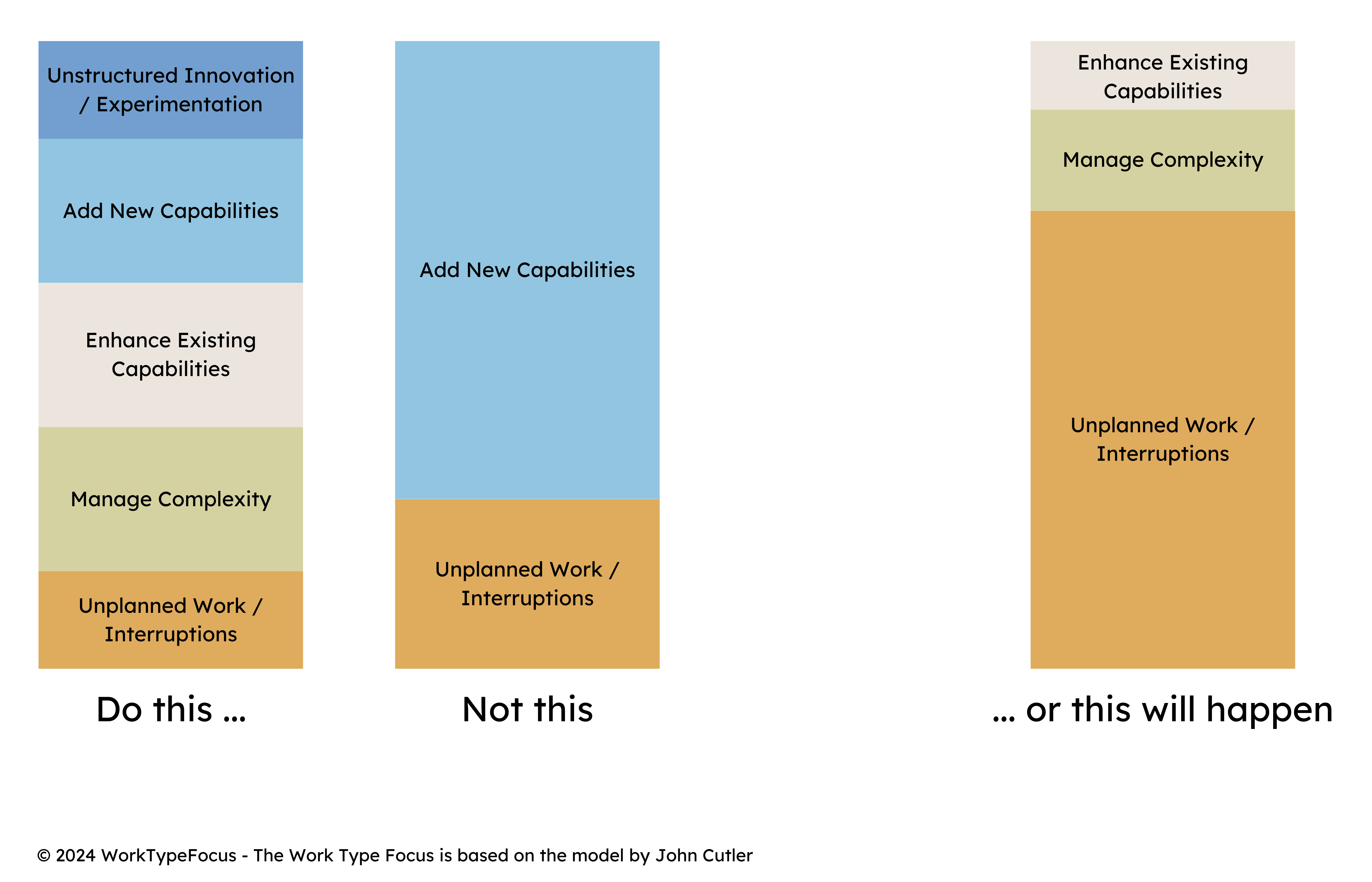
The app adds a Work Type classification to Jira tickets and turns that data into focus charts. Product and engineering can see whether the team is spending time on interruptions, complexity, enhancements, new capabilities, or innovation.
Incidents, production bugs, escalations, and work that breaks sprint focus.
Refactoring, technical debt, standards, docs, and architecture work that protects future speed.
Improvements to flows, quality, infrastructure, or capabilities users already rely on.
New features, greenfield work, feature flags, and new platform capabilities.
Spikes, hypotheses, A/B tests, hackathons, and explorations that create future options.
First-time setup is automated
Install as a Jira admin
Open Work Type Focus in the Atlassian Marketplace and click Try for free. Jira will ask an administrator to approve the app for the site.
Approve the permissions
During consent, Jira shows the permissions the app needs to create or adopt the Work Type field, save team filter selections, and add the field to Jira's default screen.
Open it from Jira
Use the Work Type Focus tab in a project board, or open Apps in the Jira side menu and choose Dashboard or My work type focus.
Permissions admins may see
storage:app
Stores the team filter selection so each user can return to the same dashboard view.
manage:jira-configuration
Creates or adopts the Work Type field and ensures the expected options are available.
manage:jira-project
Allows the app to add Work Type to Jira's default screen where Jira permits it.
Review the work mix with charts and filters
Where to find it
Open Work Type Focus from the project board tabbar. The Jira side menu item Dashboard links back to the project dashboard after you have opened a project once.
- Use the team filter to focus the charts on one or more Jira teams.
- Use the time range selector for all time, this year, last year, or a specific sprint.
- Use the Work Type Focus % chart to compare the selected work mix.
- Use the sprint trend chart to review the most recent 30 sprints.
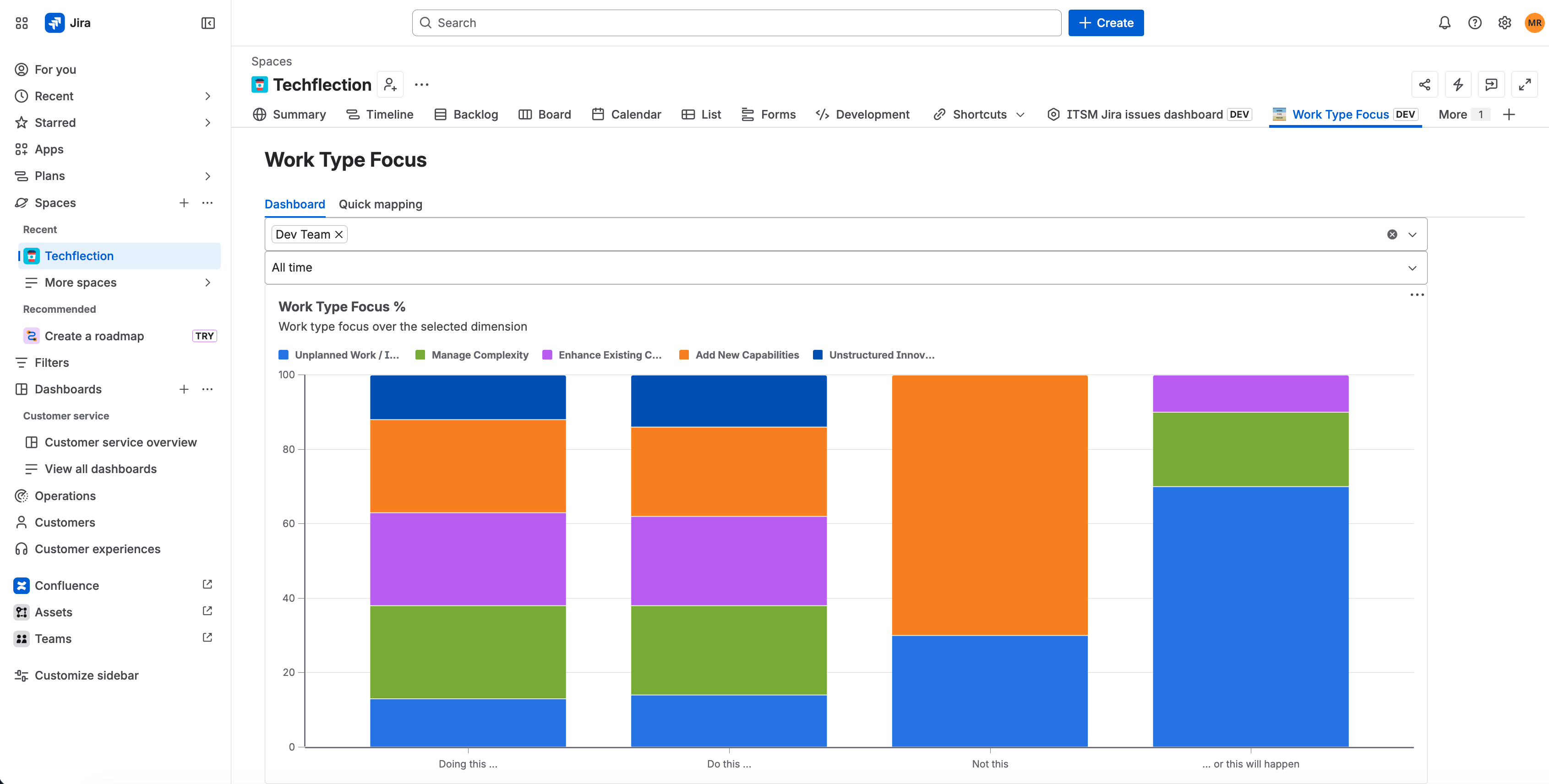
Dashboard view with project tabs, team filtering, time range filtering, and Work Type Focus % charts.
Map unmapped tickets without opening each issue
Project tab
Open Quick mapping from the Work Type Focus project tab. By default, it lists unmapped tickets in the current project so you can classify them quickly.
- Choose one of the shortcut buttons: Unplanned, Complexity, Enhance, New, or Innovation.
- Turn on the My Work filter to show only tickets assigned to you in the project.
- Mapped tickets are removed from the list and the dashboard refreshes.
Side menu My Work
Open Apps in the Jira side menu and choose My work type focus. This view starts with unmapped tickets assigned to you.
- Use Show all unmapped tickets when you want to help clear the broader backlog.
- Use Show my unmapped tickets to return to your own assignments.
- When there is nothing left to map, the app shows: "You have mapped all your tickets!"
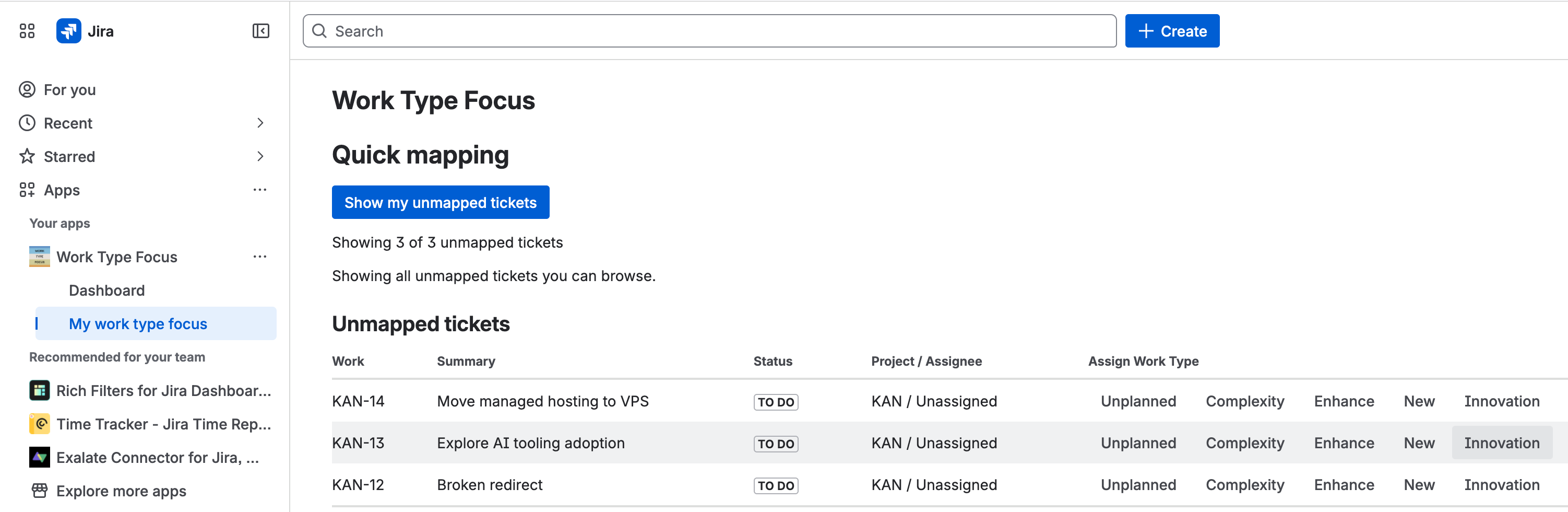
Quick mapping lists unmapped tickets and lets users assign Work Type values with shortcut actions.
View and edit Work Type from the Jira issue
Use it during normal issue work
The Work Type Focus panel appears in the Jira issue side panel. Users can see the current Work Type and select a new value directly from the issue.
- If the issue has no Work Type yet, select one from the dropdown.
- If Jira allows editing for that issue type, screen, and workflow state, the app saves the value.
- If Jira does not allow editing, the app shows a clear read-only or error message.
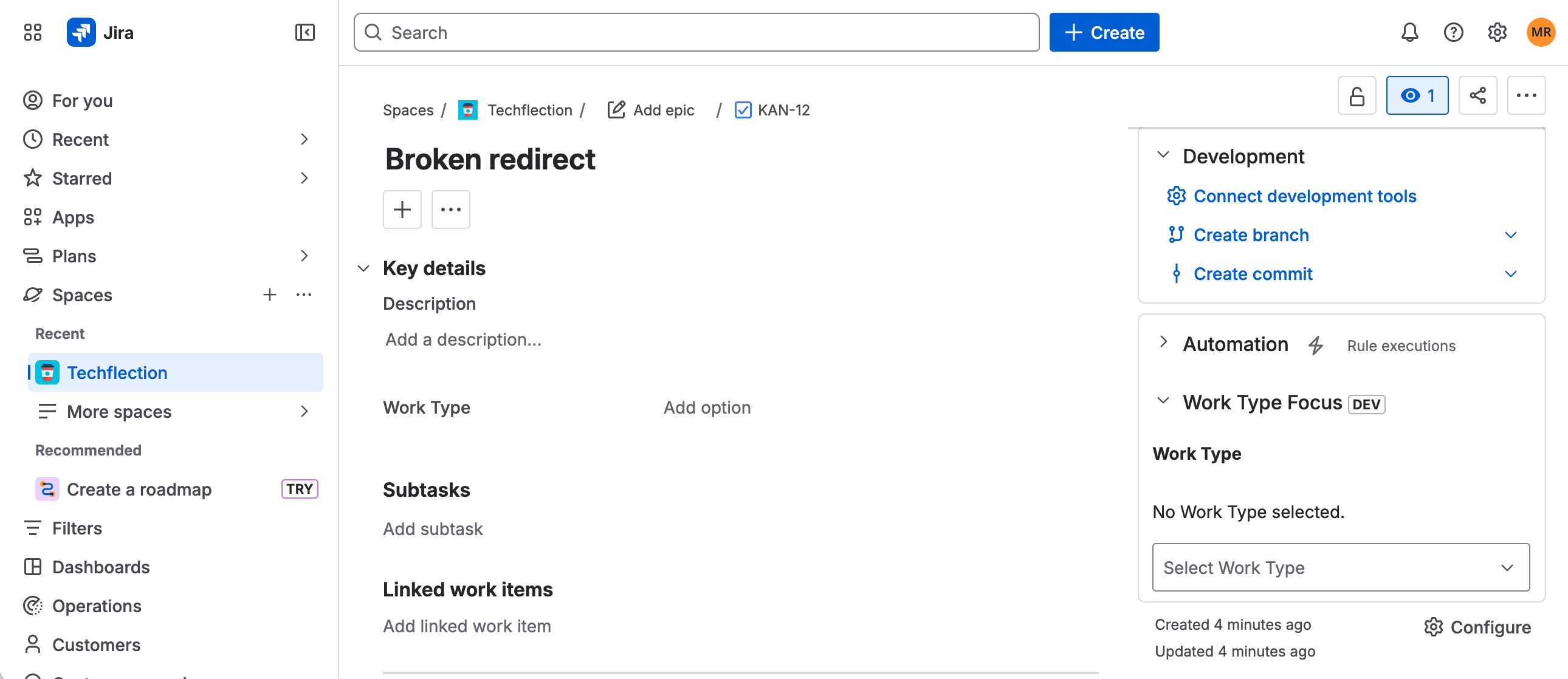
Issue side panel with Work Type Focus expanded and the Work Type dropdown ready to edit.
Child issues can inherit the parent Work Type
When a child ticket or subtask-like child issue is created, Work Type Focus checks the parent. If the parent already has a Work Type and the child does not, the app copies the parent Work Type to the child. If the child already has a Work Type, the app leaves it unchanged.
Why this matters
Inheritance keeps related work consistent and reduces mapping effort when teams split larger work items into smaller implementation tasks.
Common admin and usage questions
We already have a Work Type field
If the existing field is a compatible single-select Jira custom field named Work Type, the app adopts it and adds any missing Work Type options. If a non-compatible field uses that name, rename it or convert it before automated setup can complete.
Users can see Work Type but cannot edit it on some issues
This usually means a project-specific screen scheme, issue type screen, or workflow state prevents Jira from editing the field. Add the Work Type field to the relevant screen or adjust the Jira configuration for that issue type. Treat this as a project configuration case, not normal app setup.
The Dashboard side-menu item has no recent project
Open Work Type Focus from a project board tab once. After that, the Jira side-menu Dashboard item can return you to the most recent project dashboard.
Quick mapping is empty
An empty Quick mapping table means the current view has no visible unmapped tickets. Check whether you are viewing only My Work, or switch to all unmapped tickets if you want to review the wider project or site list.
Dashboard data looks incomplete
Charts depend on tickets having Work Type selected and Jira data being available to the current user. Map unmapped tickets first, then review team, time range, and sprint filters.
Ready to use Work Type Focus?
Install the app from Atlassian Marketplace, open it in a Jira project, and start mapping work types with automated setup.